Do NOT`tail -f /dev/null` to Keep a Container Running: The Role of the PID 1 Process
While reviewing a legacy system at work, I came across a container setup where a Python script was running as a background job. To keep the container from exiting, it used the command
tail -f /dev/null. This led to multiple background processes being spawned, but even after their work was done, they remained active. In other words, zombie processes were being created.
In this post, I’ll explain why zombie processes occur in Linux, what the PID 1 process does, and how to handle this issue properly within a Docker container.
tail -f /dev/null is essentially a workaround with several issues—most notably, it can lead to zombie processes. It’s always better to run the actual intended process directly. However, if there’s still a need to use a background process or daemon, it’s strongly recommended to use officially supported Docker entrypoints like docker-entrypoint.sh or tini.
Below, I’ll go into detail about the issues I encountered and how I resolved them.
The Situation
Among our legacy in-house systems, there was a particular long-running application. This app not only ran for extended periods but also spawned multiple subprocesses beyond its initial start process. It seemed that some kind of container-keeping process was required to manage this behavior — though honestly, it probably would’ve been better to simply wrap those processes in a shell and run the shell instead (but let’s set that aside for now).
Upon checking the Dockerfile, I noticed that it used the command tail -f /dev/null to keep the container running—essentially treating it like a daemon.
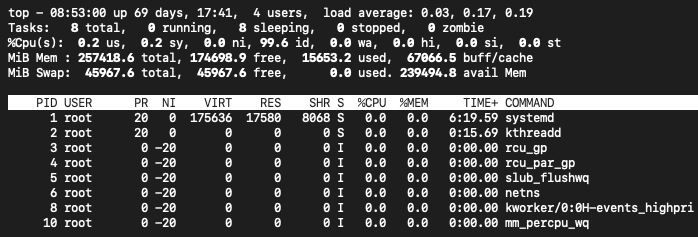
Later, when I entered the container that had been running continuously, I found several zombie processes like java <defunct>. When monitored with top, they didn’t appear to be consuming resources.
When I asked the junior engineer why this approach — tail -f /dev/null—was chosen, the answer was simply: “A blog said to do it this way.” Sure enough, a quick search showed that many blog posts uncritically recommended this pattern.
But this is actually a very risky approach that completely ignores process and signal management inside the container. While zombie processes may not consume active resources, they do occupy entries in the process table — a limited memory resource. If too many accumulate, they can indirectly affect other processes by exhausting available slots in the table.
We need to move away from this method. Let’s dive into why in the next section.
The Cause
The Problem with tail -f /dev/null
tail -f /dev/nullis a command that waits infinitely, effectively doing nothing except reading/dev/nullendlessly. When used as the PID 1 process, this process fails to properly handle system termination signals or management tasks.- Zombie processes:
tail -f /dev/nullcannot terminate or manage child processes. If another process running within the container terminates, it will remain in a zombie state, and PID 1 cannot clean it up, which leads to unnecessary resource consumption on the system. - Failure to handle signals: Since
tail -f /dev/nulldoes not handle termination signals (such as SIGTERM or SIGINT) properly, when you execute thedocker stopcommand, the container may not shut down correctly.
The Role of PID 1
- Boot process: PID 1 is the initialization process of the container and starts first when the container is run. In a typical system, PID 1 acts as the parent process, managing child processes and cleaning up terminated processes (zombie processes).
- Signal handling: PID 1 handles signals within the container. For example, when it receives a
SIGTERMsignal, it should terminate the container properly. Thus, it must correctly handle termination signals.
Proper Alternatives
1. Run your application directly as PID 1
This is the most recommended approach. Run your Python script, Bash script, or application binary directly as PID 1 using the CMD or ENTRYPOINT directive in your Dockerfile:
CMD ["python", "main.py"]By doing this, your main process will correctly receive and handle signals, and can clean up child processes as expected.
2. Use Docker’s official “--init" option
Docker provides a built-in lightweight init process via the --init option. This helps avoid issues where the process running as PID 1 doesn’t properly handle signals or fails to reap zombie processes:
docker run --init your_imageWhen you use --init, Docker runs a lightweight binary called /usr/bin/docker-init as PID 1. Internally, this binary uses tini, a minimal but robust init system.
3. Explicitly use “tini” in your Dockerfile
tini is a tiny init process that handles signal forwarding and reaps orphaned child processes properly. You can explicitly include it in your Dockerfile like this:
ENTRYPOINT ["/tini", "--"]
CMD ["python", "main.py"]
tini is widely used even in official Docker images, and safely delegates PID 1 responsibilities to a tool built exactly for that purpose.
Note: Using the --init flag in docker run will implicitly run tini for you, so you don’t have to install or configure it manually. In most cases, this single flag is enough to avoid all common PID 1 issues.
Conclusion
Running tail -f /dev/null as PID 1 might seem like a quick fix to keep a container running, but it introduces real problems: signal handling failures, zombie processes, and delayed shutdowns. While it might be okay in development or debugging environments, it becomes a significant technical debt in production.
If you want your containers to behave reliably, you must ensure that the process running as PID 1 properly handles signals and manages child processes. Avoid hacks like tail -f /dev/null, and instead, either run your application directly as PID 1 or delegate PID 1 duties to a proper init system like tini.
In most real-world cases, simply adding the --init flag to your Docker command is all it takes to fix the problem. It’s a good idea to make this your default.